Browser Mail - Online Webmail
Looking to access your online mailbox... just click the link below or type it into the address bar:

https://mail.browsermail.co.uk/

This page is provided as a Support Page to assist you setting up email on your devices.  The support is generic and is provided for Windows and Mac based PC's, Laptops, Tablets and Mobile devices.  For other equipment, please contact us 

Please note that we do not offer any specific support on the use of your devices and equipment (other than email support) so please contact your own provider for that.  If you provider is unable to help, if required, we can provide you with additional support services but these may be chargeable.
First Time Setup

If you are setting your mailbox up for the first time or adding it so another device, eg a mobile, etc, you need to use the following settings.  When setting up, substitute the example name for your own mailbox name and domain name, eg if your email address is bob@smith.com then substitute yourname@yourdomainname.com with your real information of bob@smith.com.  Also pay attention to the item in bold as these need to be edited to suit your setup.

Setting:               Value/Info to use:

Username            yourname@yourdomainname.com
Password             Use the password you were given
Incoming Server   mail.servemail.co.uk
IMAP Port             993 (or use 143 if you are using non-SSL or having issues with your software)
Outgoing Server   smtp.servemail.co.uk
SMTP Port            465 (or use 25 or 587 if you are using non-SSL or having issues with your software)
Username            yourname@yourdomainname.com

Servemail.co.uk is a dedicated Mail Server that supports full SSL/TTL Secure Access.  We recommend that you always use this rather than any that your email application may automatically detect.

Authentication is required so please make sure you enter the correct password.  The SSL Settings are discretionary security settings but you are advised to use them wherever you can, but note that in all instances, all iOS (Apple) devices will need to have the SSL option enabled to allow the email to work via the mobiles built-in mail app.  Also following is a step-by-step example of adding a mailbox in Microsoft Outlook and also note the option to use Mobile the mobile version if preferred.
Should I use the Mobile version or an App?
 

Default Mobile Device view


With the Web Mail Service

You do not need to add the mailbox to your PC/Desktop mail program, eg (Outlook) or your mobile devices, Android or iOS app, as we provide a fully functional webmail package and a fully dedicated Mobile version so you can stay connected and on the go at all times.

Any email you send/receive from a Desktop will be seen on your Mobile and visa-versa keeping you in sync across different devices.

You can of course if you wish, add your mailbox to your favourite mail application such as Outlook, etc.  If you do this, please add it as an IMAP mailbox so that all your email synchronises and you can still use the WebMail service wherever you are on another device.

IMPORTANT: always make sure you log out of your email account when you have finished and never save passwords when using a PC you do not own or trust or is using Public WiFi systems, eg Cafe's, Hotels, Airports, etc.

Default PC/Desktop WebMail view

A Step-by-Step Guide to adding your mailbox to Outlook (2016, 2019 and 365 variations)

To get your mailbox in Outlook, please do the following:

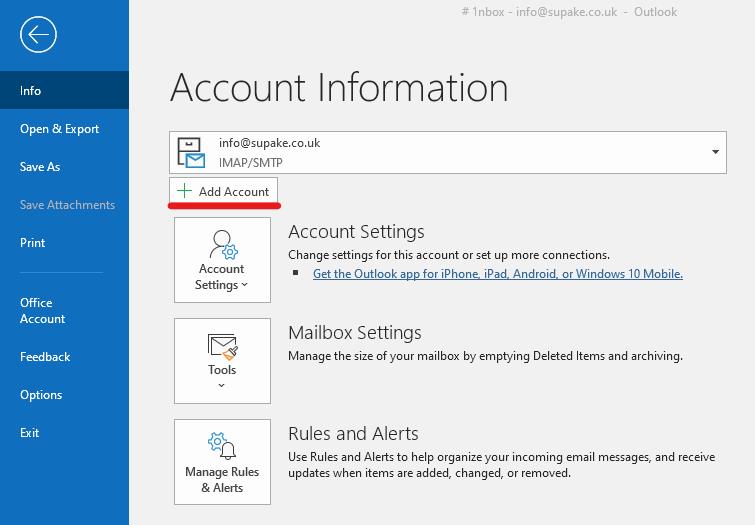
1.  Start Outlook and go to the File menu and choose '+ Add Account'


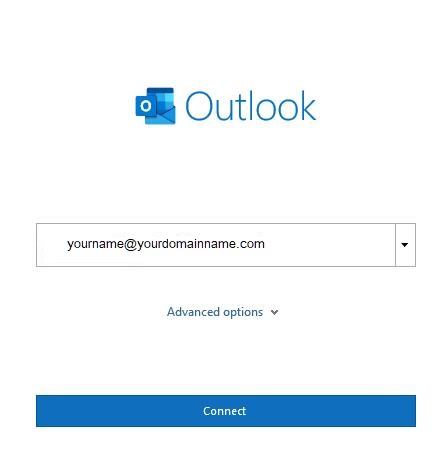
2.  Enter your email address (make sure you use your name provided) and click 'Connect'
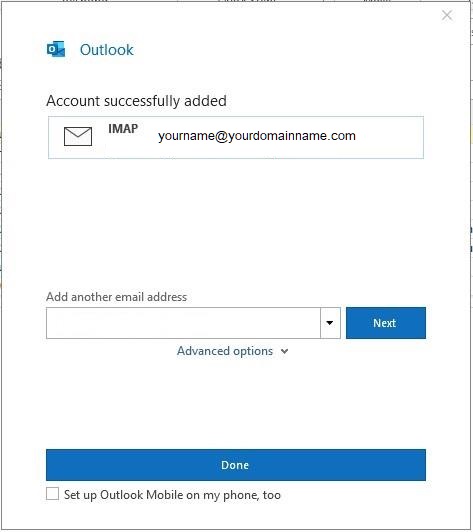
3.  Now enter your given password and click 'Connect'.  You will see a message saying that it is adding your account and once completed, you should see the following dialog


... just click 'Done' and you are now set up!


4.  Untick the box '[X] Set up Outlook Mobile on my phone, too' and click 'Done'


In the event you cannot get Outlook to add your new mailbox, you can also use the older method of using the Control Panel and selecting the 'Mail (Microsoft Outlook)' option (your wording may be different) and use the 'Email Accounts' and 'New' option to add the new mailbox to Outlook.  Also, you may wish to change the Outgoing and Incoming mail server settings to the defaults detected (usually your domain name) to mail.servemail.co.uk and smtp.servemail.co.uk as these are fully SSL/TLS compliant server services.


Auto Responders aka 'Out of Office Replies', 'Holidays' or 'Vactions'


It is possible to set up an Out of Office Reply, ideal for when you are on Holiday or just need to send a generic response.  You can set this up via the Online Mail web page.  Please go to the browsermail page as seen at the top of this page.


One you are in to the main browsermail page, log in with your email address and password.  You can now create your "Out of Office" response as follows:


1.  Click the 'Settings' menu, this might look like a cog or wheel - it can be in different places based on your chosen layout.

2.  Click the 'Vacation' link - this will take you to

3.  Enter a Subject.  Please do not use any 'special' characters in the Sujbect line, only use A-Z, a-z and 0-9.

4.  Enter your message, eg 'I am away from my desk, please call the office for more information.'

5.  Content Type; Plain Text is simply what you type in the box.  HTML is code that you have generated and pasted in to offer more formatting and options.  You can type HTML directly if you so wish - to help with this, please use out handy HTML Code Generator at the bottom of this section.

6.  Enter a Starting Date and Time for your message

7.  Enter an Ending Date and Time for your message.  When both dates are set, your message will be sent between this dates and so you can set this up at any time to suit.

8.  You can optionally 'Forward mail to' another mailbox, a colleague or private mailbox if you wish.

9.  Enable the 'Notification toggle' to send the message.  To stop sending Auto Replies, just untick and save the option.

10.  Click the Save button to activate the Out of Office reply.


Once done, you can click the 'Mail' icon to return to the main window.


PLEASE NOTE:  It can take up to 30 minutes for your Out of Office message to become ready (or updates changed) so please do not send any 'test messages' for at least that time.  Also note that the system will only auto-response once in 8 hours to a named sender/mailbox (so don't keep 'testing' it!).  This is to avoid email congestion and unnecessary and repeated replies to the same person.


If you should encounter any errors or issues while setting up, please use the Contact Us form for help.


Email Account Limits - How Much, How Often and Attachment Sizes

The following limits apply to all messages sent via authenticated SMTP. This will primarily be used for email sent via a mail client, but can also include mail sent via your website if configured to send via SMTP.


We impose a limit of 8,000 messages per e-mail address per 24 hours and the following limits also apply:


No more than 10,000 recipients per day.

No more than 2,000 unique recipients per day.

A single email may not be sent to more than 100 individual addresses.

As an example, if you were to send 100 emails to 5 different e-mail addresses within a 24 hour period. We would count 100 messages to 5 unique recipients = 500 total recipients/emails.


New Mailbox Limit


When a new mailbox has been set up, the sending is limited to 50 per day for 7 days. This is actually an abuse rule to prevent new mailboxes being set up and used immediately to send out high volumes of spam emails.


Web Server Limits


A limit of 500 messages per day is imposed on all e-mail sent by our webmail service at https://mail.browsermail.co.uk

E-mails sent by the web servers should be no larger than 5 MB in size.


Email Size Limits


Our mail system accepts attachments up to 32MB in size, and the maximum message size in our network is 50MB.


Autoresponders


An autoresponder only sends once every 8 hours per sender.


Zero Tolerance Spam Policy


We take a zero tolerance stance against the sending of unsolicited email, bulk emailing and spam. It's to keep our email hosting's excellent reputation.


Please note: The distributed nature of our network means email can leave through different servers at different times. As a result, you may see periods when you can send a greater number of messages than the limits mentioned above. However, this behaviour should not be relied upon and is not supported. If you do wish to send a larger number of e-mails than any of the limits mentioned above, we would recommend looking at a specialist marketing email platform.